

Experiencing frustratingly unresponsive buttons in Blender? Don’t let this technical hiccup stall your creative flow! This comprehensive 2026 guide walks you through a series of checks and solutions, from simple restarts to deeper dives into software and hardware. We’ll help you pinpoint the cause and get your Blender buttons working flawlessly again, ensuring your 3D projects stay on track.
Are you spending more time staring at a frozen Blender interface than actually creating? It’s a common frustration: you click a button, and… nothing. Absolutely no response. This can be incredibly disheartening when you’re in the zone, trying to bring your 3D visions to life. But before you throw your hands up in despair, know that this is a solvable problem. In this 2026 guide, we’re going to systematically walk you through everything you need to check when Blender buttons aren’t responding. We’ll cover everything from the simplest checks to more advanced troubleshooting, ensuring you can get back to your modeling, animating, or rendering as quickly as possible.
Let’s dive into what could be causing those unresponsive buttons and how to fix them.
Key Takeaways
- System Resource Overload: Ensure your computer isn’t bogged down by too many applications or demanding processes, as this can impact Blender’s responsiveness.
- Outdated Graphics Drivers: Keeping your graphics card drivers up-to-date is crucial for Blender to communicate correctly with your hardware, preventing many visual and interactive glitches.
- Corrupted User Preferences: Blender’s configuration files can sometimes become corrupted, leading to strange behavior like unresponsive buttons. Resetting these preferences can resolve the issue.
- Add-on Conflicts: Newly installed or outdated add-ons can interfere with Blender’s core functionality, causing buttons and features to stop working.
- Hardware Issues: While less common, problems with your mouse, keyboard, or even the USB port can manifest as unresponsive clicks within Blender.
- Blender Version Specific Bugs: Certain versions of Blender might have known bugs that affect button functionality. Checking release notes and considering an update or downgrade can be a solution.
- Display Scaling and Resolution: Incorrect display settings can sometimes cause UI elements to misinterpret clicks. Adjusting these can sometimes fix the problem.
1. The Simplest Solution: Restart Everything
It sounds basic, but often, the simplest solutions are the most effective. Many software glitches are temporary and can be resolved with a fresh start.
Restart Blender
The first and easiest step is to simply close Blender and open it again. Sometimes, a program just needs a quick refresh to clear out temporary errors.
- Navigate to File in the top-left corner of the Blender window.
- Select Quit.
- Wait a few seconds, then reopen Blender.
Test a few buttons to see if the issue is resolved.
Restart Your Computer
If restarting Blender didn’t do the trick, it’s time to give your entire system a reboot. This clears out RAM, closes background processes that might be interfering, and can resolve deeper system-level issues that might be affecting Blender’s performance.
- Save your Blender work if possible.
- Click on the Start menu (Windows) or the Apple menu (macOS).
- Select Power, then Restart.
- Once your computer has fully restarted, open Blender and test the buttons again.
2. Check Your System Resources
Blender can be a resource-intensive application. If your computer is struggling to keep up, it might manifest as unresponsive interface elements.
Monitor CPU and RAM Usage
High CPU and RAM usage can significantly slow down your computer and affect program responsiveness. You can check this using your operating system’s task manager.
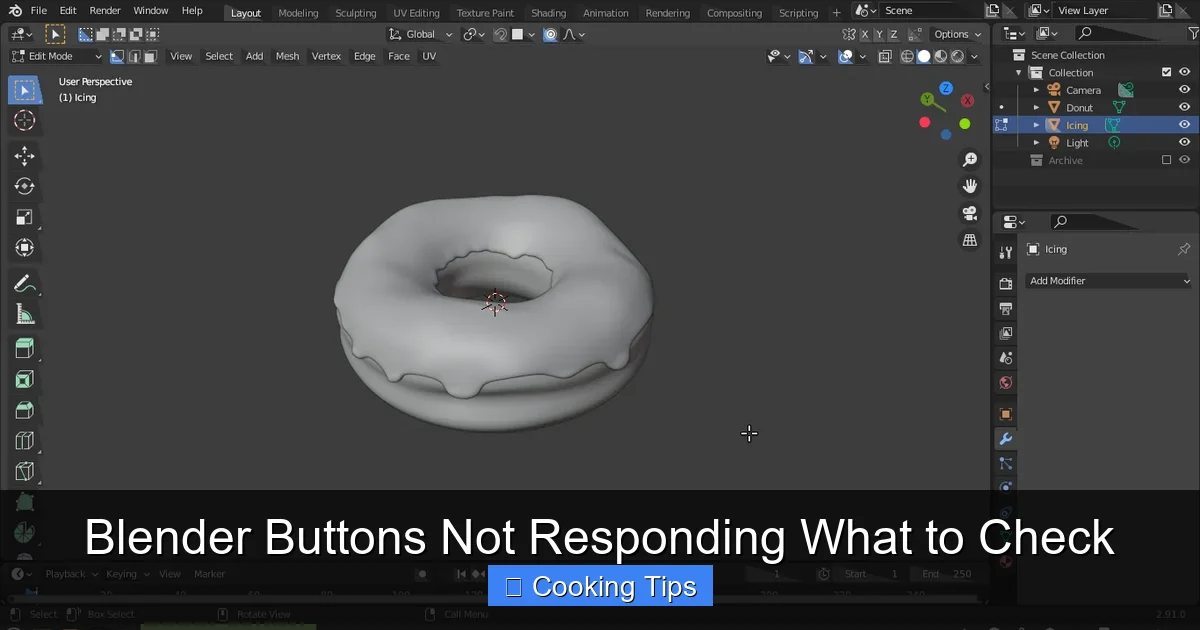
Visual guide about Blender Buttons Not Responding What to Check
Image source: media.blenderartists.org
- On Windows: Press Ctrl + Shift + Esc to open the Task Manager. Look at the “Processes” tab and sort by CPU and Memory to see what’s consuming the most resources.
- On macOS: Open Activity Monitor (Applications > Utilities > Activity Monitor). Check the CPU and Memory tabs.
If you see Blender or another application using a very high percentage of your CPU or RAM, close unnecessary programs. Freeing up resources can often bring unresponsive buttons back to life.
Close Unnecessary Applications
Are you running multiple heavy applications alongside Blender, like video editors, large-scale simulations, or even many browser tabs? These can all compete for your system’s resources. Close anything you don’t actively need while working in Blender.
3. Graphics Driver Issues
Your graphics card and its drivers are vital for Blender to render its interface and handle user input correctly. Outdated or corrupted drivers are a frequent culprit for graphical glitches and unresponsive elements.
Update Your Graphics Drivers
This is one of the most important checks you can perform. Manufacturers like NVIDIA, AMD, and Intel regularly release updates to improve performance and fix bugs.
Visual guide about Blender Buttons Not Responding What to Check
Image source: community.gamedev.tv
- Identify your graphics card: You can usually find this information in your system’s device manager or system information.
- Visit the manufacturer’s website:
- For NVIDIA: Go to www.nvidia.com/drivers
- For AMD: Go to www.amd.com/support
- For Intel: Go to www.intel.com/content/www/us/en/support/detect.html
- Download the latest drivers: Ensure you download the correct drivers for your specific graphics card model and operating system.
- Install the drivers: Follow the on-screen instructions. A restart of your computer is usually required after installation.
After updating, launch Blender and test the buttons. Many users report that this simple step resolves a wide range of UI issues.
Consider a Clean Installation of Drivers
Sometimes, simply updating isn’t enough. If you suspect your drivers might be corrupted, performing a “clean installation” can help. This option usually removes all previous driver files before installing the new ones.
- During the driver installation process on NVIDIA or AMD, look for a “Custom” or “Advanced” installation option.
- Select the “Perform a clean installation” checkbox if available.
4. Blender’s User Preferences
Blender stores all your settings, shortcuts, and preferences in a configuration file. If this file becomes corrupted, it can lead to all sorts of unexpected behavior, including unresponsive buttons.
Reset Blender User Preferences
This will reset Blender to its default settings, which can often resolve issues caused by corrupted preferences. Don’t worry, you can always reapply your custom settings later.
Visual guide about Blender Buttons Not Responding What to Check
Image source: community.gamedev.tv
- Open Blender.
- Go to Edit > Preferences.
- In the Preferences window, navigate to the Save & Load tab.
- Under “File Paths,” find the “User Preferences” section.
- Click the “Reset to Default” button.
- You will be prompted to confirm. Click “Reset User Preferences”.
- Blender will restart with default settings.
Test the buttons. If this fixes the issue, you’ll need to reconfigure your shortcuts, themes, and other custom settings gradually to identify what might have been causing the problem.
Manually Delete User Preferences (Advanced)
If resetting via the interface doesn’t work, you can try manually deleting the preferences file. This is a more aggressive approach.
- Locate the Blender configuration folder:
- Windows: %APPDATA%\Blender Foundation\Blender\
\ - macOS: ~/Library/Application Support/Blender/
/ - Linux: ~/.config/blender/
/ - Replace
- Close Blender completely.
- Delete the entire folder for your specific Blender version.
- When you next launch Blender, it will create a fresh configuration folder.
Caution: This will remove ALL your custom settings, add-ons, and recent files list. Make sure you have backups of any essential data if possible.
5. Add-on Conflicts
Add-ons are fantastic for extending Blender’s capabilities, but a buggy, incompatible, or outdated add-on can wreak havoc on the interface.
Disable All Add-ons
The best way to test if an add-on is causing the problem is to disable them all and then re-enable them one by one.
- Open Blender.
- Go to Edit > Preferences.
- Navigate to the Add-ons tab.
- At the top of the Add-ons list, there’s a checkbox to “Enable All”. Uncheck this to disable all currently active add-ons.
- Close and reopen Blender.
Test the buttons. If they now work, you know an add-on was the culprit.
Re-enable Add-ons Incrementally
Now, re-enable your add-ons one by one, testing the buttons after each one. As soon as you re-enable an add-on and the buttons become unresponsive again, you’ve found the problematic add-on.
- Go back to the Add-ons tab in Preferences.
- Check the box next to an add-on to enable it.
- Close and reopen Blender.
- Test the buttons.
- Repeat until the issue reappears.
Once identified, you can try updating the add-on, disabling it permanently, or seeking support from its developer. If it’s a built-in add-on, consider reporting the bug to the Blender developers.
6. Hardware and Input Device Issues
Sometimes, the problem isn’t with Blender itself, but with the hardware you’re using to interact with it.
Test Your Mouse and Keyboard
Are your mouse buttons sticking? Is your keyboard registering key presses reliably? Try using a different mouse and keyboard if you have them available.
- Test your mouse and keyboard in other applications to see if they behave normally.
- Check for any physical debris that might be stuck under your mouse buttons or keyboard keys.
Check USB Connections
If you’re using a wired mouse, keyboard, or drawing tablet, try plugging them into a different USB port. Sometimes, a faulty USB port can cause intermittent connectivity issues.
If you’re using a wireless device, ensure the receiver is properly connected and the batteries are fresh.
Drawing Tablet Issues
If you’re using a drawing tablet (like Wacom, Huion, etc.), its drivers can sometimes conflict with Blender. Ensure your tablet’s drivers are up-to-date. You might also want to try disabling tablet input within Blender’s preferences (Edit > Preferences > Input > Tablet) to see if that resolves the issue, especially if you’re primarily using a mouse for general interface navigation.
7. Display Settings and Screen Scaling
Mismatched display settings can sometimes cause the UI to misinterpret mouse clicks.
Adjust Display Scaling (Windows)
Windows often uses scaling to make text and icons larger on high-resolution displays. Incorrect scaling can sometimes lead to UI elements being misaligned with their clickable areas.
- Right-click on your desktop and select Display settings.
- Under “Scale and layout,” look at the dropdown for “Change the size of text, apps, and other items”.
- Try setting it to 100% or another common value (e.g., 125%).
- Restart Blender to see if this has any effect.
Check Display Resolution
Ensure your display resolution is set to its native (recommended) setting for your monitor. An unusual resolution might cause rendering issues that affect the UI.
8. Blender Version Specific Issues
While Blender is incredibly stable, every software version can have its quirks or bugs.
Check Blender Release Notes and Known Bugs
Before spending hours troubleshooting, it’s worth checking if your specific Blender version has any known issues related to UI responsiveness. Visit the official Blender website (blender.org) and look for news or bug tracker information for your version.
Consider Updating or Downgrading
If you’re using a very old version, updating to the latest stable release is usually a good idea. Conversely, if the problem started immediately after updating to a new version, you might consider temporarily downgrading to a previous, stable version while the developers address any newly introduced bugs.
- To download previous versions, visit the Blender Downloads page and look for the “Previous Versions” section.
9. Corrupted Scene or File
In rare cases, the issue might not be with Blender’s installation but with a specific .blend file you’re working on.
Test in a New Scene
Create a brand new, empty Blender scene. If the buttons work correctly in a new scene, the problem might be isolated to your specific project file.
If you suspect your file is corrupted, try opening older backups of your .blend file to see if the issue persists.
Conclusion
Encountering unresponsive buttons in Blender can be a real roadblock, but it’s rarely an insurmountable one. By systematically working through this checklist – from simple restarts and resource checks to driver updates, preference resets, and add-on management – you’re highly likely to identify and resolve the cause. Remember that patience and a methodical approach are your best allies when troubleshooting. Keeping your system and Blender software updated, and being mindful of your add-on ecosystem, will contribute to a smoother and more productive 3D workflow in 2026 and beyond. Don’t let a few sticky buttons stop your creativity; armed with these steps, you can get back to crafting amazing 3D content!
