

Embark on your 3D creation journey with this comprehensive Blender 2026 guide. You’ll learn to navigate the interface, build basic models, add realistic textures, set up lighting, and render your finished scenes. Blender is a powerful, free tool, and this guide will make it accessible to everyone. Get ready to bring your ideas to life in 3D!
Key Takeaways
- Navigate the Blender Interface: Understand the different windows, editors, and how to manipulate the viewport for efficient workflow.
- Basic Modeling Techniques: Learn to create and edit fundamental shapes using extruding, scaling, and other essential modeling tools.
- Adding Materials and Textures: Discover how to apply colors, image textures, and procedural materials to give your objects realistic surfaces.
- Understanding Lighting: Explore different light types and how to position them to illuminate your scene effectively and create mood.
- Rendering Your Creation: Learn how to set up your render engine and produce a final image or animation of your 3D scene.
- Essential Navigation and Shortcuts: Familiarize yourself with key shortcuts and navigation methods to speed up your 3D modeling process in Blender 2026.
How Do You Use Blender Step by Step
Welcome to the exciting world of 3D creation with Blender 2026! Whether you’re an aspiring animator, a game developer, a visual effects artist, or just someone curious about bringing digital objects to life, you’ve come to the right place. Blender is an incredibly powerful, free, and open-source 3D creation suite. It’s used by professionals and hobbyists alike for everything from modeling and sculpting to animation, simulation, rendering, and even video editing. This guide will walk you through the fundamental steps to get you started with Blender. We’ll cover the essential elements you need to know to begin creating your own 3D masterpieces.
Getting Started: Downloading and Opening Blender
First things first, you’ll need Blender installed.
Head over to the official Blender website (blender.org) and download the latest stable version for your operating system. Once downloaded, follow the installation prompts.
When you launch Blender 2026 for the first time, you’ll see a splash screen.
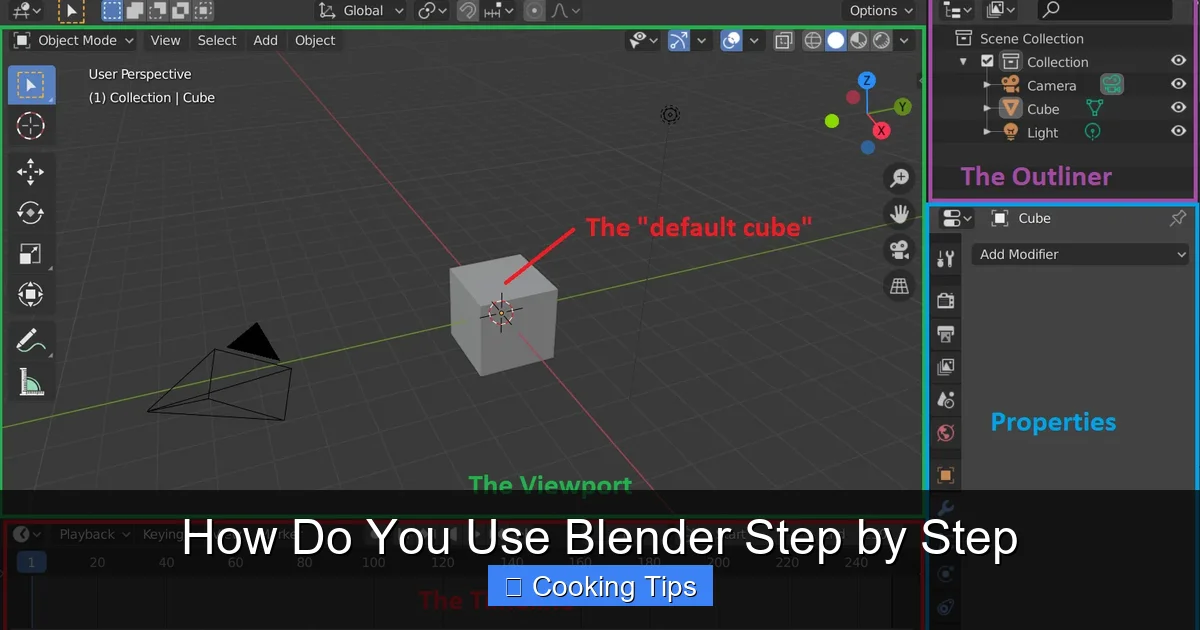
You can click anywhere outside of it to dismiss it. You’ll then be greeted by the default startup scene. This typically includes a cube, a light source, and a camera.
Understanding the Blender Interface
The Blender interface can seem a bit daunting at first, but it’s designed to be highly customizable and efficient. Let’s break down the main areas.
The 3D Viewport
This is your main workspace. It’s where you’ll see your 3D scene and interact with your objects. You can rotate, pan, and zoom around your scene here.
- Rotation: Hold the middle mouse button (scroll wheel) and drag the mouse.
- Pan: Hold Shift + middle mouse button and drag the mouse.
- Zoom: Scroll the middle mouse button.
The Outliner
Located at the top right, this lists all the objects in your scene. You can select, rename, and organize objects here.
Properties Editor
Usually found at the bottom right, this panel contains all the settings and properties for your selected object, scene, render settings, and more. It’s a crucial area for fine-tuning your work.
Timeline
At the bottom of the screen, this is used for animation. You can scrub through frames here.
Tool Shelf and Properties Panel (T & N Keys)
Pressing the ‘T’ key in the 3D Viewport toggles the Tool Shelf on the left, which contains various modeling and editing tools. Pressing ‘N’ toggles the Properties Panel on the right, offering more contextual options.
Basic Navigation and Object Manipulation
Now that you’re familiar with the interface, let’s learn how to move around and interact with objects.
Selecting Objects
Left-click an object in the 3D Viewport to select it. You can select multiple objects by holding Shift while left-clicking.
Moving, Rotating, and Scaling
Once an object is selected, you’ll see gizmos (colored arrows and circles) around it. These are transform manipulators.
- Move (G): Press ‘G’ to activate the move gizmo. Drag your mouse to move the object. You can constrain movement to an axis by pressing X, Y, or Z after pressing ‘G’.
- Rotate (R): Press ‘R’ to activate the rotate gizmo. Drag your mouse to rotate. Constrain rotation to an axis by pressing X, Y, or Z after pressing ‘R’.
- Scale (S): Press ‘S’ to activate the scale gizmo. Drag your mouse to scale. Constrain scaling to an axis by pressing X, Y, or Z after pressing ‘S’.
Modeling: Creating Basic Shapes
The cube you start with is just the beginning. Let’s learn to add and edit basic geometric shapes.
Adding Objects
To add new objects, press Shift + A. A menu will appear. Go to ‘Mesh’ and choose a primitive shape like a UV Sphere, Cone, or Cylinder.
Edit Mode vs. Object Mode
Blender has two primary modes: Object Mode and Edit Mode.
- Object Mode: This is where you manipulate entire objects (move, rotate, scale).
- Edit Mode: This is where you edit the geometry of an object – its vertices, edges, and faces. Press the Tab key to switch between Object Mode and Edit Mode.
Basic Editing Tools (in Edit Mode)
Once in Edit Mode (Tab), you can select vertices (dots), edges (lines), or faces (surfaces) by clicking the icons at the top left of the 3D Viewport or by pressing 1, 2, or 3 on your keyboard.
- Extrude (E): Select faces or edges and press ‘E’. This will create new geometry by pulling out from the selected elements. This is incredibly useful for adding detail.
- Inset Faces (I): Select faces and press ‘I’. This creates a new face inside the selected face, useful for creating frames or borders.
- Bevel (Ctrl+B): Select edges and press Ctrl+B. This rounds off sharp edges, making objects look more realistic.
Materials and Texturing
Objects need color and surface detail to look convincing.
The Shading Workspace
At the top of the Blender window, you’ll find different workspace tabs. Click on ‘Shading’ to switch to a workspace optimized for working with materials.
Creating a New Material
With an object selected, go to the Properties Editor, then the Material Properties tab (red sphere icon). Click ‘+ New’ to create a new material.
The Node Editor
In the Shading workspace, you’ll see a node-based editor at the bottom. The default setup includes a ‘Principled BSDF’ node connected to the ‘Material Output’ node.
- Base Color: Click the color swatch next to ‘Base Color’ in the Principled BSDF node to choose a color.
- Image Textures: To add an image, press Shift+A in the node editor, search for ‘Image Texture’, and place it. Click ‘Open’ on the Image Texture node to load your image. Connect the ‘Color’ output of the Image Texture node to the ‘Base Color’ input of the Principled BSDF node.
- Procedural Textures: Blender has built-in procedural textures (like Noise Texture, Musgrave Texture) that can create complex patterns without using image files. Experiment with these for unique looks.
Lighting Your Scene
Good lighting is crucial for making your 3D scenes look appealing.
Light Types
Press Shift+A > Light. You can choose from:
- Point Light: Emits light in all directions from a single point, like a bare light bulb.
- Sun Light: Simulates direct sunlight, emitting parallel rays.
- Spot Light: Emits a cone of light, like a spotlight.
- Area Light: Emits light from a surface, creating softer shadows and is great for studio lighting.
Positioning and Adjusting Lights
Select a light and use the ‘G’ (move), ‘R’ (rotate), and ‘S’ (scale) keys just like with objects. In the Properties Editor, under the Object Data Properties (green light bulb icon), you can adjust the ‘Power’ (intensity) and ‘Color’ of your lights.
Rendering Your Creation
The final step is to render your scene, turning your 3D setup into a 2D image or animation.
Choosing a Render Engine
In the Properties Editor, go to the Render Properties tab (camera icon). Blender offers two main render engines:
- Eevee: A real-time render engine that is very fast. Great for previews and for projects where speed is critical.
- Cycles: A physically-based path tracer that produces more realistic results but takes longer to render.
Setting Up the Camera
You have a camera in your default scene. Select it and press ‘0’ on your Numpad to look through the camera. You can move the camera like any other object. To fine-tune its position, you can lock the camera to your view. In the 3D Viewport, press ‘N’ to open the Properties Panel, go to the ‘View’ tab, and check ‘Camera to View’. Now, when you navigate the viewport, the camera will follow. Remember to uncheck it when you’re done!
Rendering the Image
Once you’re happy with your scene, go to the top menu bar and click ‘Render’ > ‘Render Image’ (or press F12). Your rendered image will appear in a new window. You can save it from the Render window by going to ‘Image’ > ‘Save As’.
Troubleshooting Common Issues
It’s normal to run into problems. Here are a few common ones:
Object is Invisible in Render
Ensure the object is not hidden in the viewport (the eye icon in the Outliner) and that it has a material applied. Also, check if it’s within the camera’s view.
Render is Too Dark/Bright
Adjust the ‘Power’ setting of your lights. Also, consider the exposure settings in the Render Properties under ‘Color Management’.
Viewport is Laggy
For very complex scenes, your computer might struggle. Try simplifying your scene, hiding less important objects, or working in a lower viewport quality setting if available.
Conclusion
You’ve taken your first steps into the vast and creative world of Blender 2026! We’ve covered essential navigation, object manipulation, basic modeling, adding materials, lighting, and rendering. Remember, the key to mastering Blender, like any skill, is practice. Don’t be afraid to experiment, try new tools, and explore the countless tutorials available online. The Blender community is large and supportive, so if you get stuck, there’s always help to be found. Keep creating, keep learning, and enjoy the journey!
